Welcome to our brand new Scottsdale Mint Dealer portal!
We have tons of exciting and new tools for helping our dealers order what they need and have access to the data that matters to them!
Check back to this page soon for the latest updates!
For a quick walkthrough and tour of our platform, watch this 10 minute guide:
Getting Started
This portal will make your experience shopping and ordering with us a smooth and seamless process, speeding up the process and giving you more confidence and data to make your day to day decisions and run your business!
Front Page
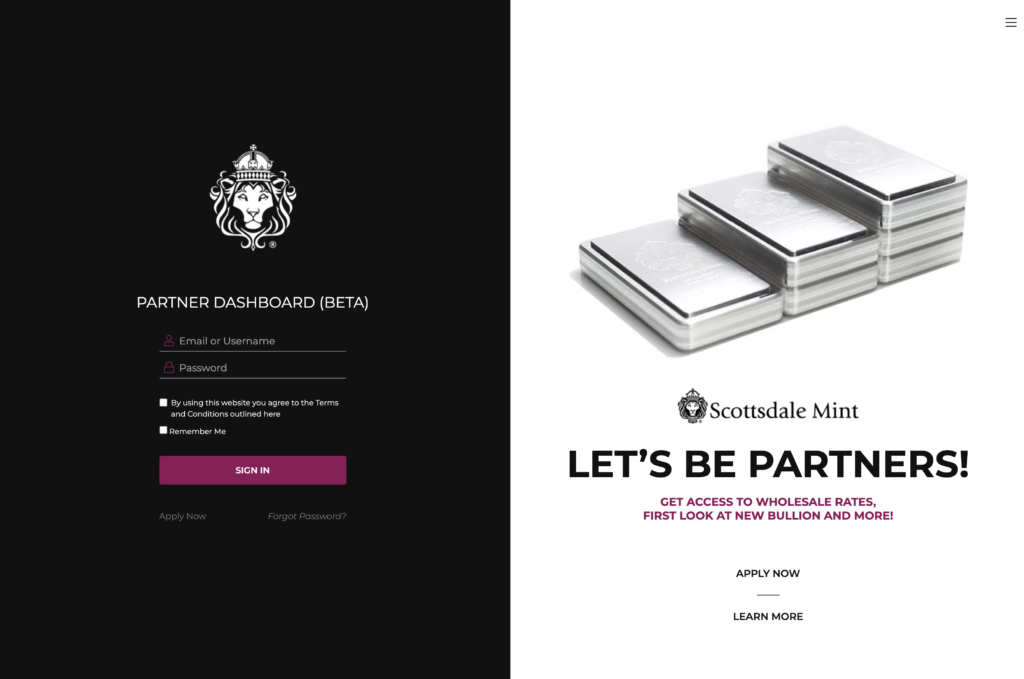
This is our Dealer Front Page. From here, new dealers can apply for our program on the right and learn more about what being a dealer means.
On the left, you can signin to your account.
All dealers are required to sign and agree to our Terms and Conditions on every sign in.
Accounts can not be created at will, but will be created for you by Scottsdale Mint staff.
Dealer Dashboard
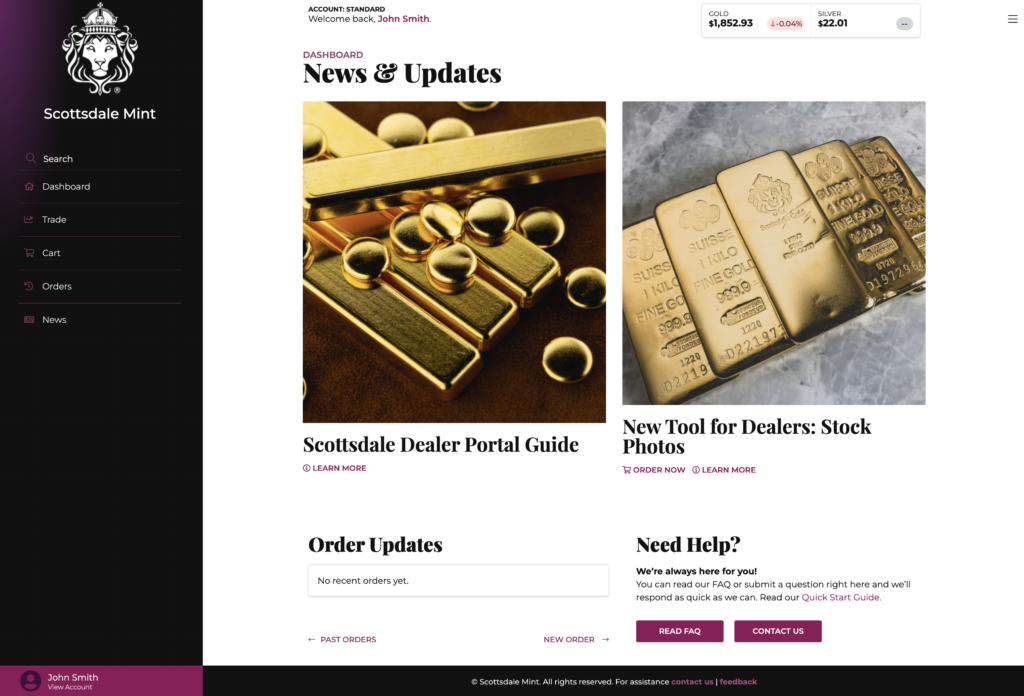
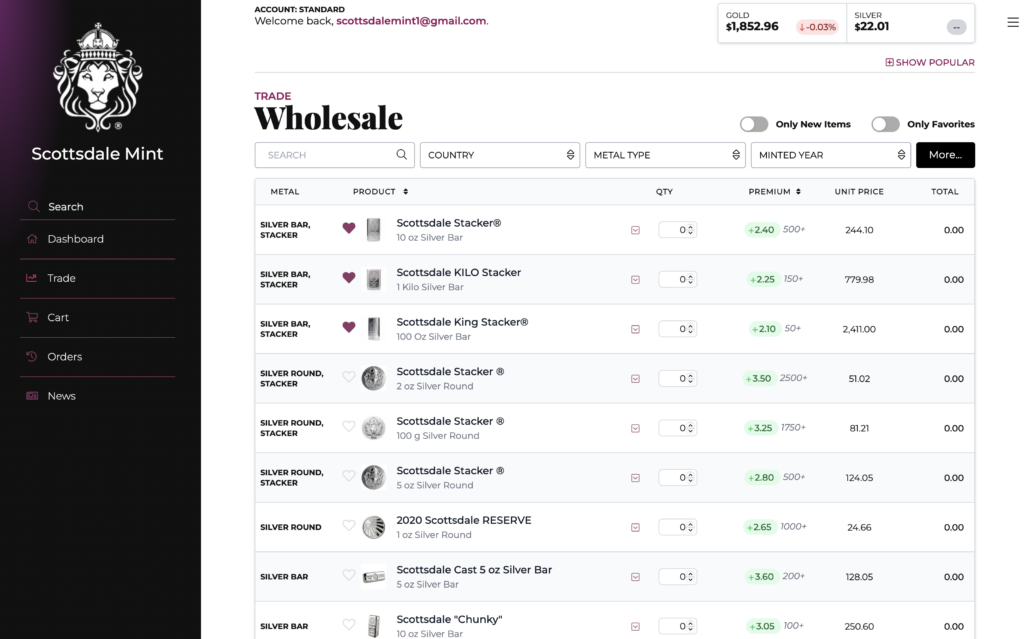
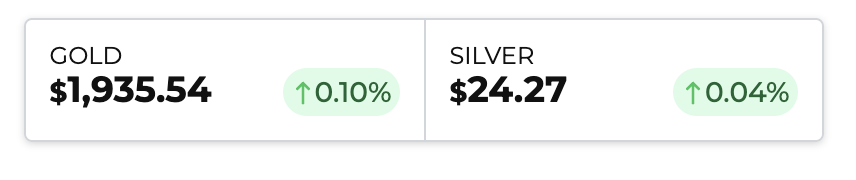
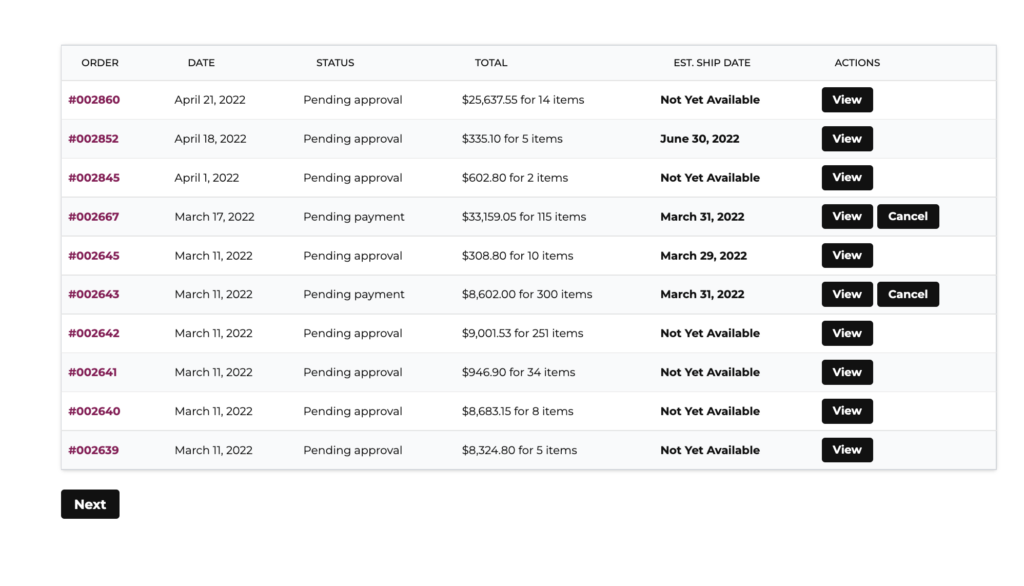
This is our dealer’s dashboard. From here, you can see latest News and Releases. You can view updated spot price in the top right. In the bottom left is a live view at your latest Orders and their current Status.
On the far left is our Navigation, which includes a Search bar which immediately takes you to the Product Ordering page.
DASHBOARD takes you to this home page dashboard.
TRADE takes you to our new product ordering page where you can view products and add items to your cart. Carts are saved for up to TWO weeks.
CART takes you to your current saved shopping cart.
ORDERS takes you to your Accounts current and past order history to view.
NEWS takes you to our new Dealers News page which will showcase our product launches and any and all updates for our dealers.
Account > Login Security
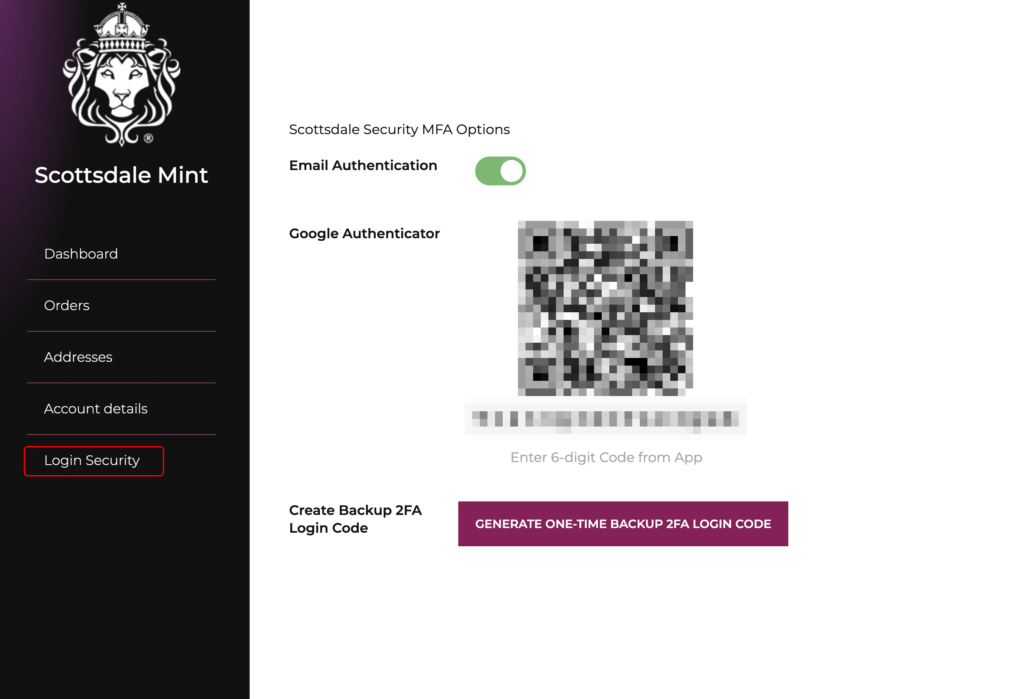
Before you begin, please click on Account at the bottom and navigate to Login Security to immediately turn on 2FA and secure your account. Make sure to also change your password from your default sent password that was generated with your account.
TRADE
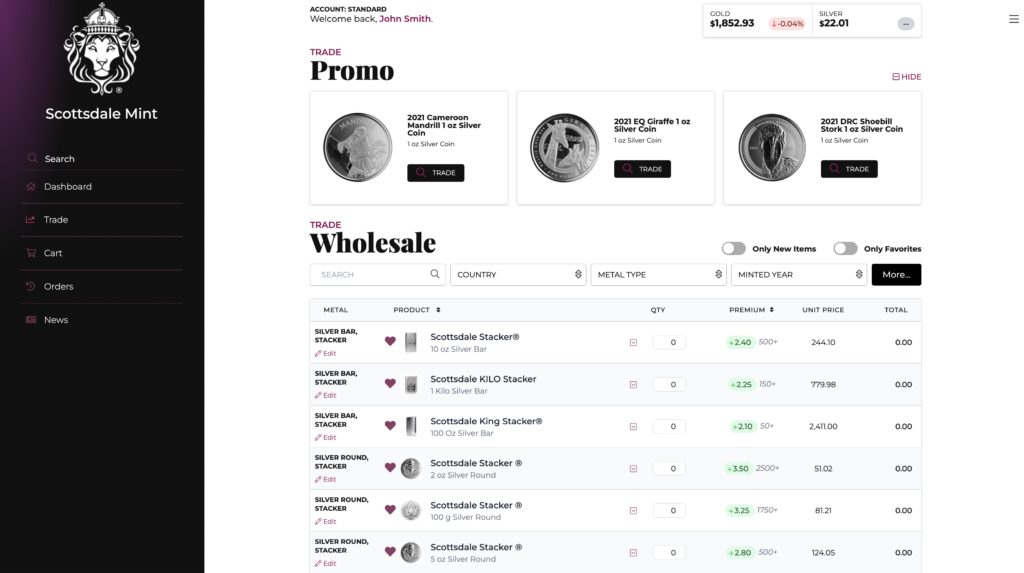
This is your new Order Desk page. Whenever you want to order product, this will be your first step. From here you can add products to cart, select favorites that you order frequently, see Newly released bullion, and see what’s on sale.
Works on Mobile!
Before we go any farther, we wanted to highlight that our entire trading app is mobile compatible, meaning you can lock trades on the run or anywhere your devices can go!
What’s On Sale Or New
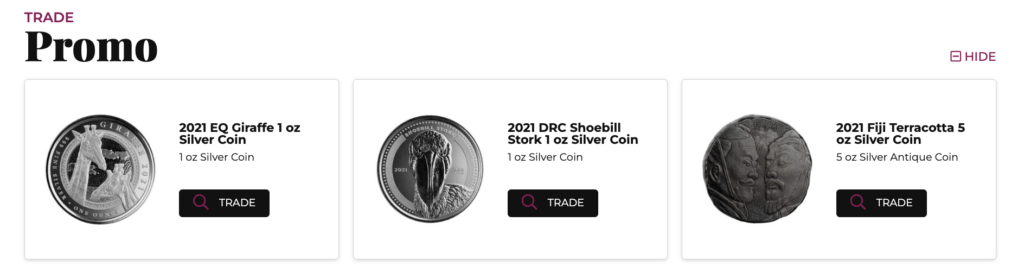
View our latest deals and new Bullion in this top section. Click HIDE in the top right to hide this section.
Updating SPOT Price
A live updating SPOT PRICE that is being used for the B2B portal is in the very top right of the page. All calculations are being done based on these numbers.
Search & Filter
Search for items or filter down our huge Bullion product catalog with our filters. You can also select to only see NEW items or items you have Marked as Favorite.
Click on MORE on the right to show more filters.
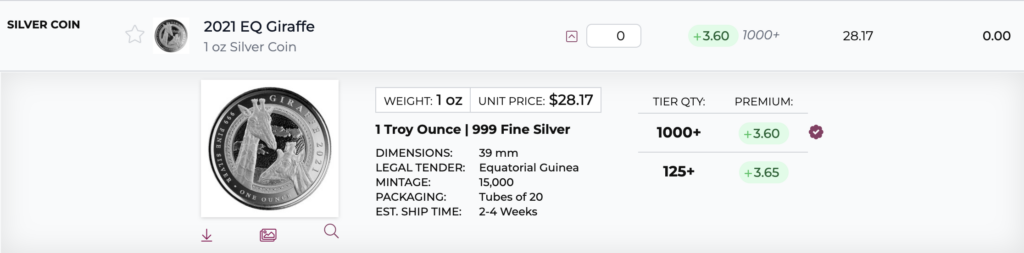
View More Details
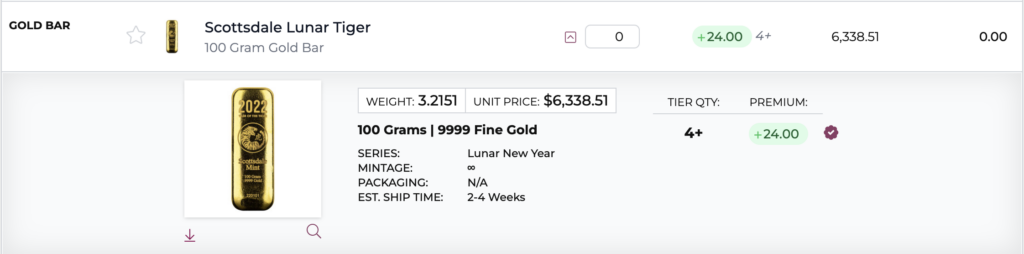
View more details about a particular product by click on the DOWN arrow next to the Quantity column.
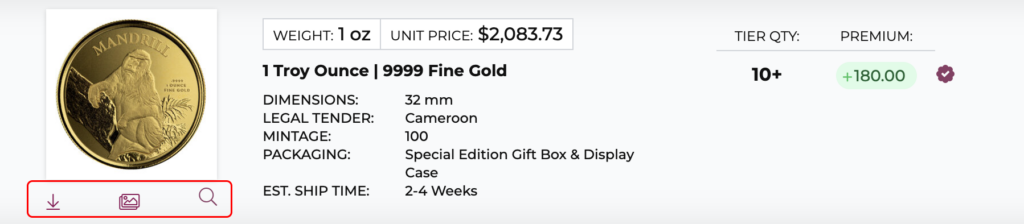
From here you can see Product specifics like Mintage, Quality and packaging if any.
Download Images
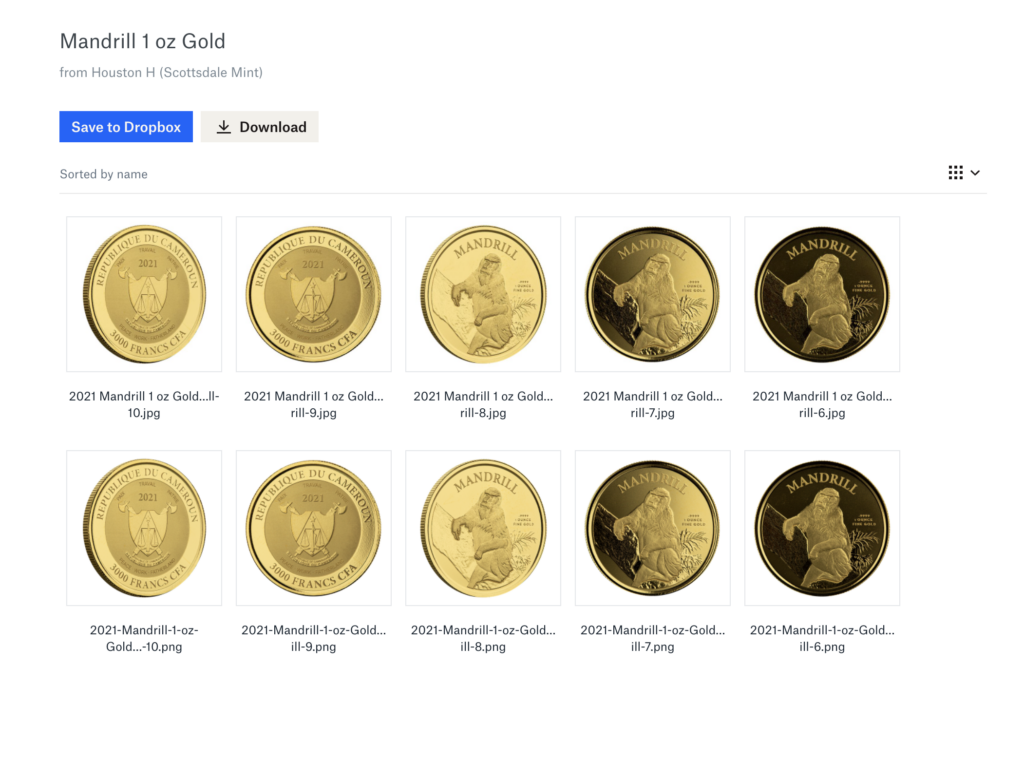
By clicking on the middle image icon below the featured image, you will be taken to our Dropbox account where you can download the entire set of the chosen item’s pictures for your listings. The down arrow icon downloads only the main image listing, and the eye glass icon will enlarge the featured image for detailed viewing.
If there is no middle image icon, then we have not yet uploaded those product images yet. Contact support to alert us and we’ll fix the situation as quickly as possible.
Live Updating Pricing
As a Scottsdale Mint Dealer, you receive priority pricing because of your bulk ordering. We are moving to a new system with the launch of our Dealer portal in order to deliver consistent results across our large product line.
Starting now, Products are priced based on how many of each individual product are ordering.
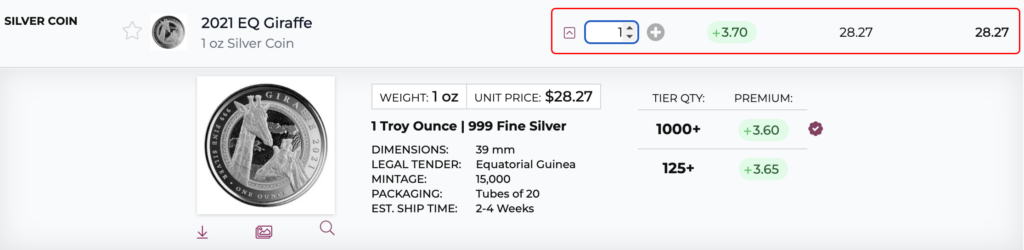
By default, our Trading Page will show you the Best Pricing available based on volume discounting. If you view a Product’s dropdown section, you can see all possible pricing tiers easily and make the best decision for your business on what quantity you’d like to order.
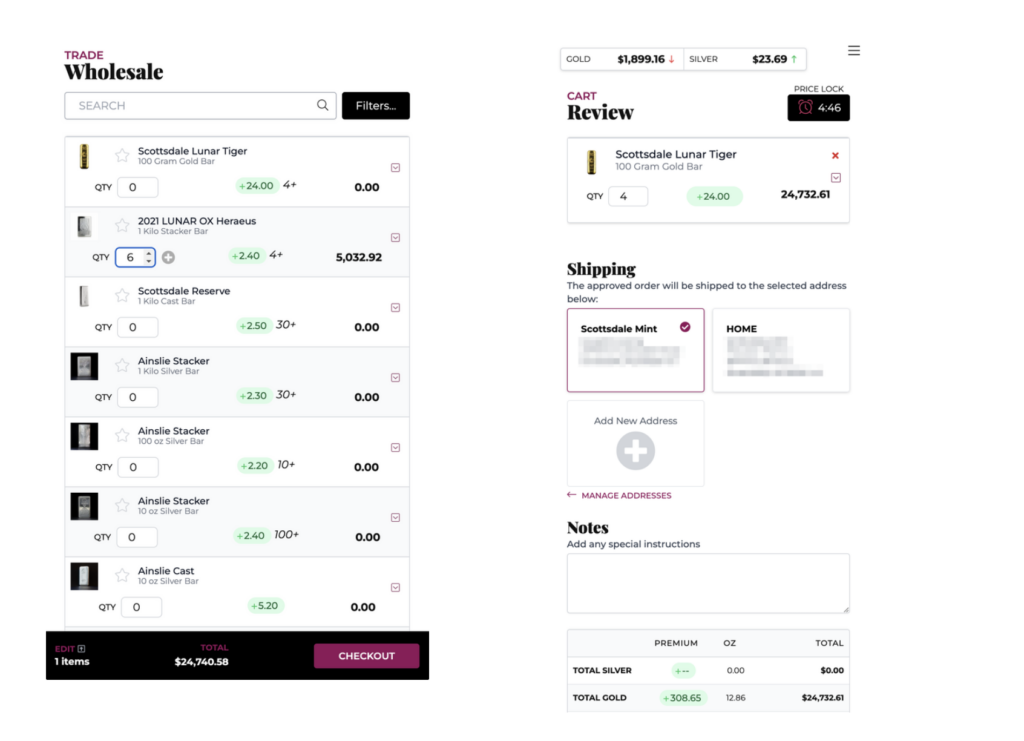
As soon as you enter a number greater than zero, the Premium, Unit price and Total columns will all automatically update to show you your current Premiums and Totals.
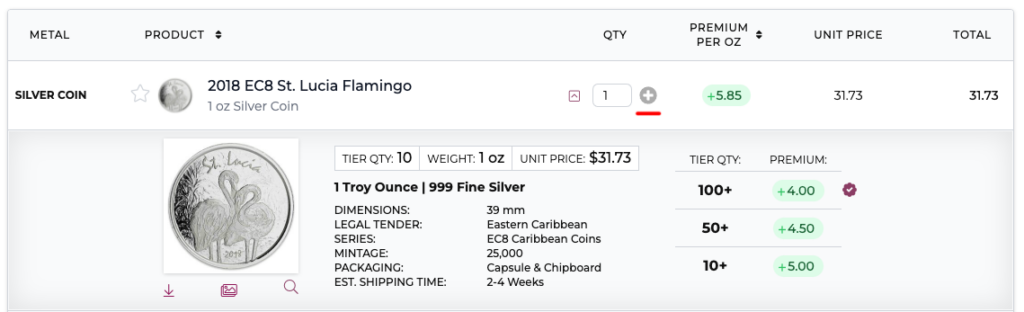
ADD to Cart
To add the item to your cart, press the + button directly to the right of the Quantity input box.
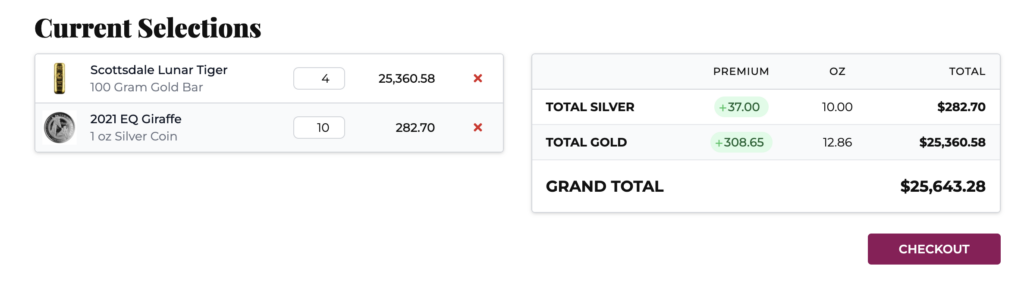
As soon as you have added an item to the cart, at the bottom of the Trading page, your cart will automatically update with the current cart totals.
When you are ready to check out, click the red CHECKOUT button.
CHECKOUT
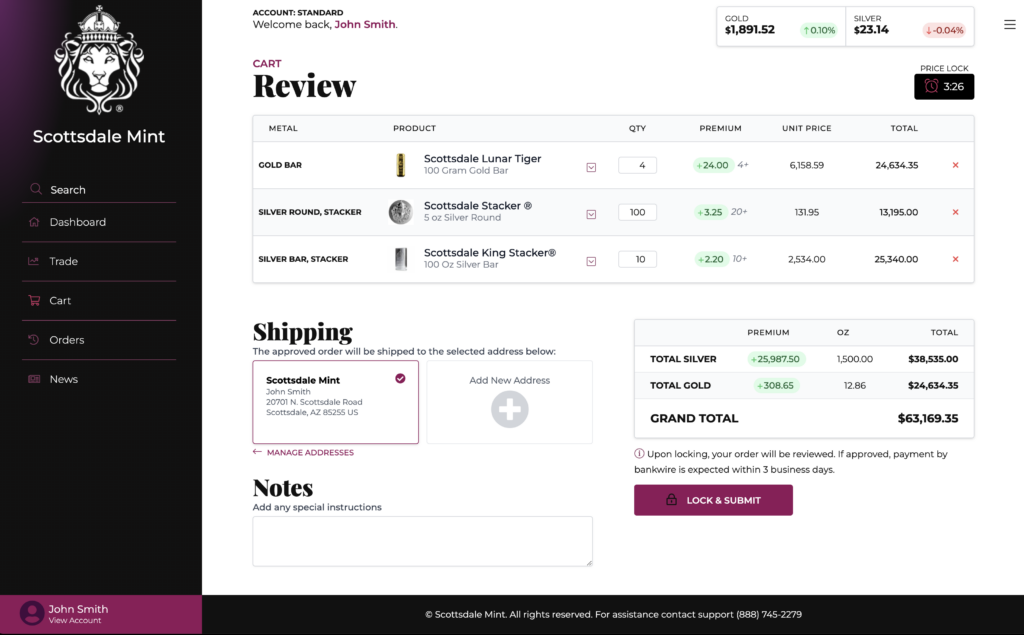
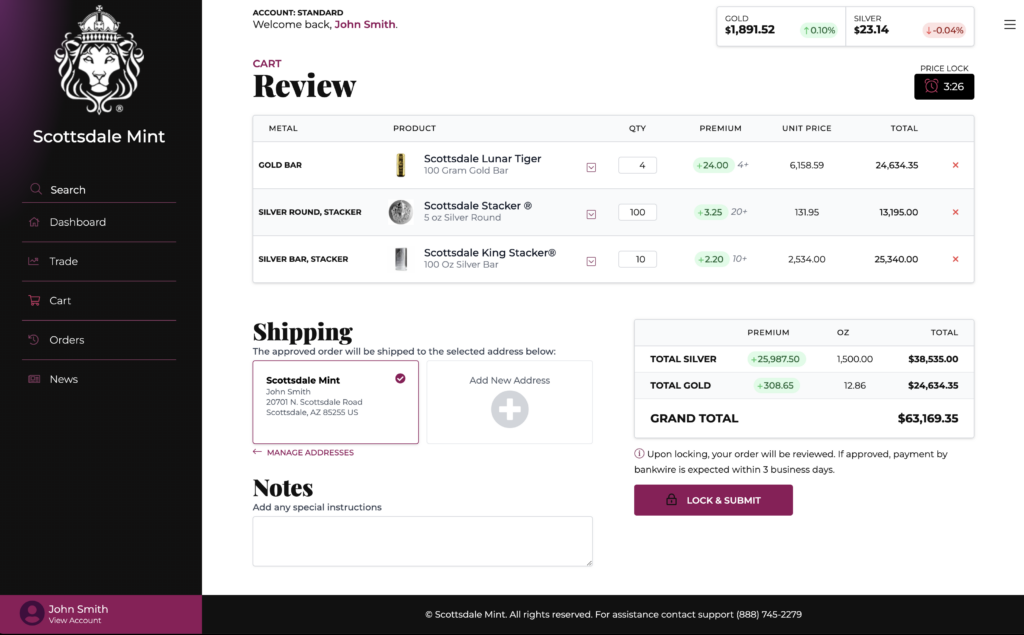
When finished adding items to your cart, you can click Checkout to be taken to our new Order Review & Locking page.
On this page, you can still adjust quantities to fit your budget, or delete items from the cart entirely, with all totals live updating. Add any notes you need to add that may be specific to this specific order.
You will also need to select which address you want your order delivered to. Once selected, this address can not be changed without approval from Scottsdale Mint staff.
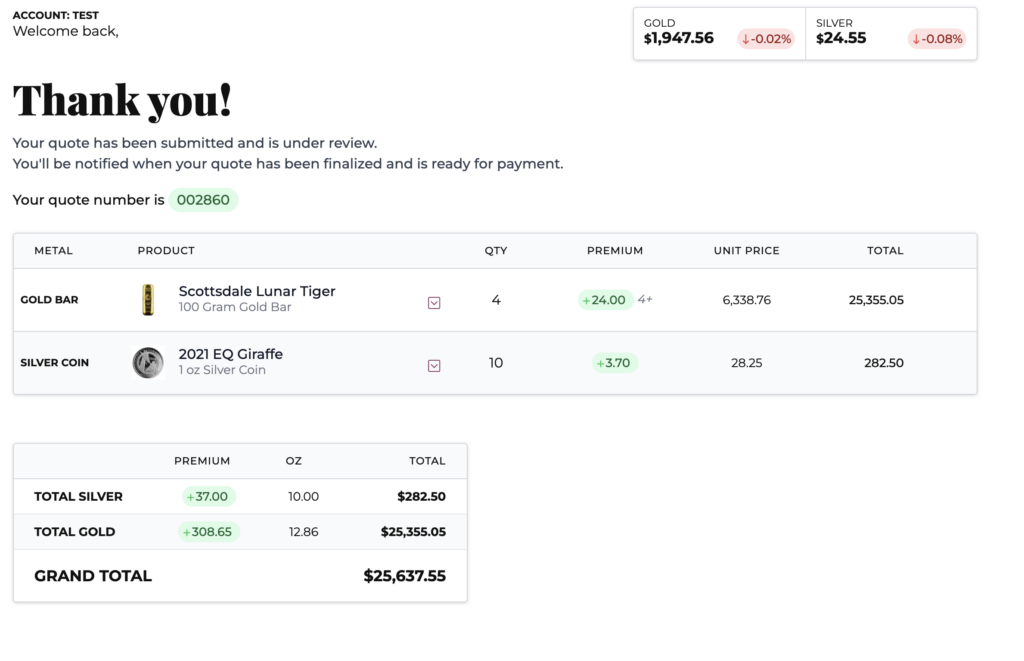
Click LOCK & SUBMIT to submit your order. All orders will be manually reviewed and approved by our team. Our team will review and may add shipping costs to your order, so the number seen here and the final Amount Owed may differ.
Once an order has been approved and locked, your will immediately be sent an email notifying you of its approval, final amount owed and Payment instructions.
Upon locking, your order will be reviewed and manually approved by our staff. Additional shipping charges may be added to your Grand Total. If your order is approved, payment by bankwire is expected within 3 business days or Scottsdale Mint may cancel your order.
ORDERS
Click on the ORDERS navigation on the left to be taken to your account orders history.
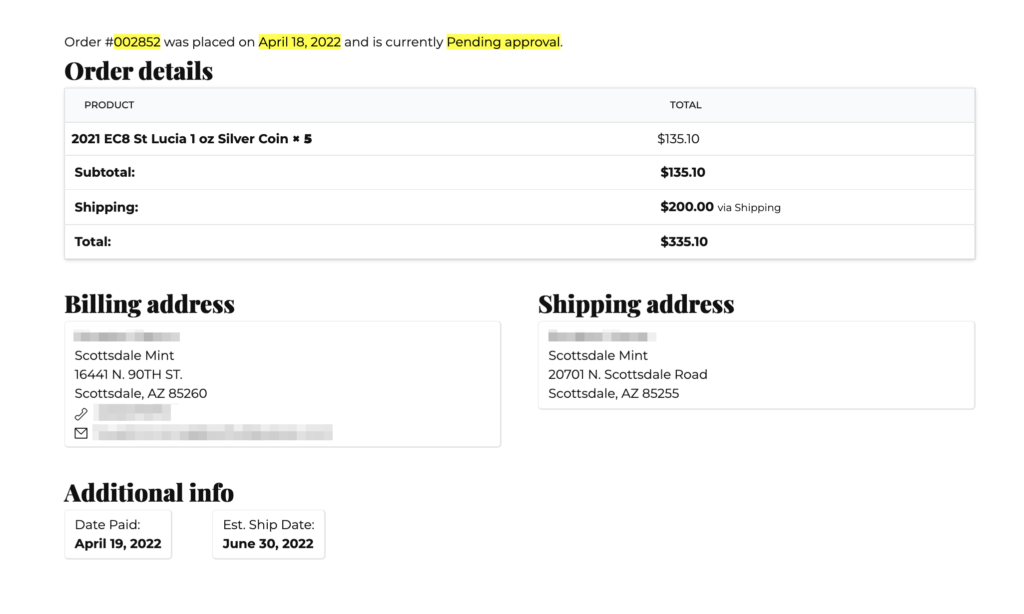
Reviewing individual orders will allow you to see more specifics, including our team’s estimated Ship date for your items. Should that Ship Date change, you will automatically get an email notification.
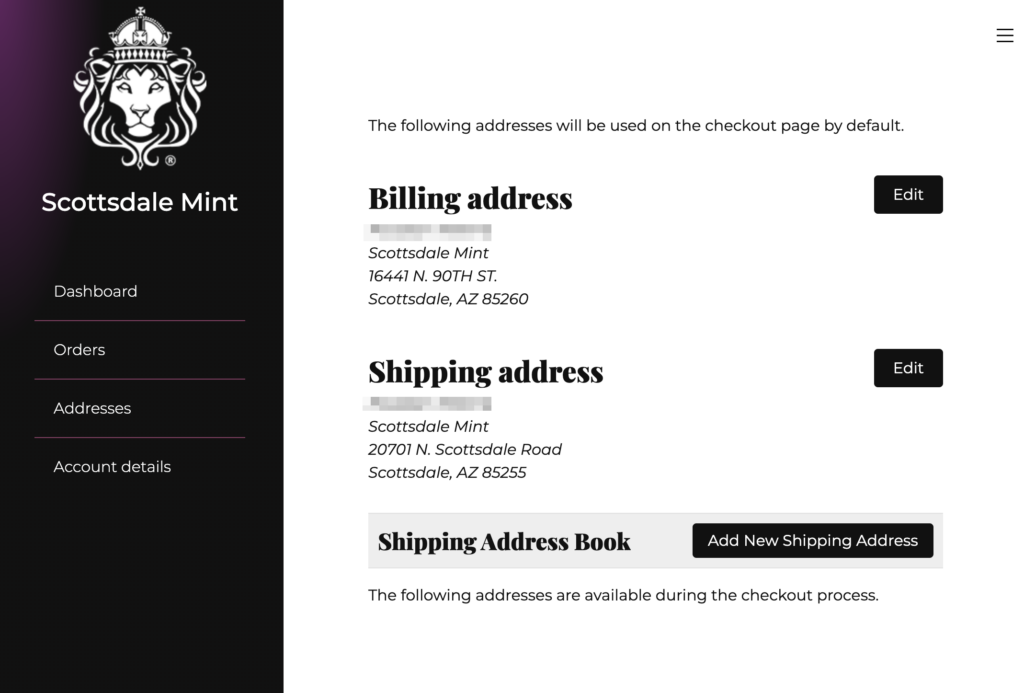
Add Shipping Addresses
Click on your account and Addresses to add additional shipping addresses.
That’s it!
We hope with our new Dealer Dashboard, the time you spend managing this part of your business can be greatly improved and made an easy and enjoyable shopping experience.
Give us Feedback!
Love our new portal? Have some feedback that could make it even better? Let us know!